About Forge
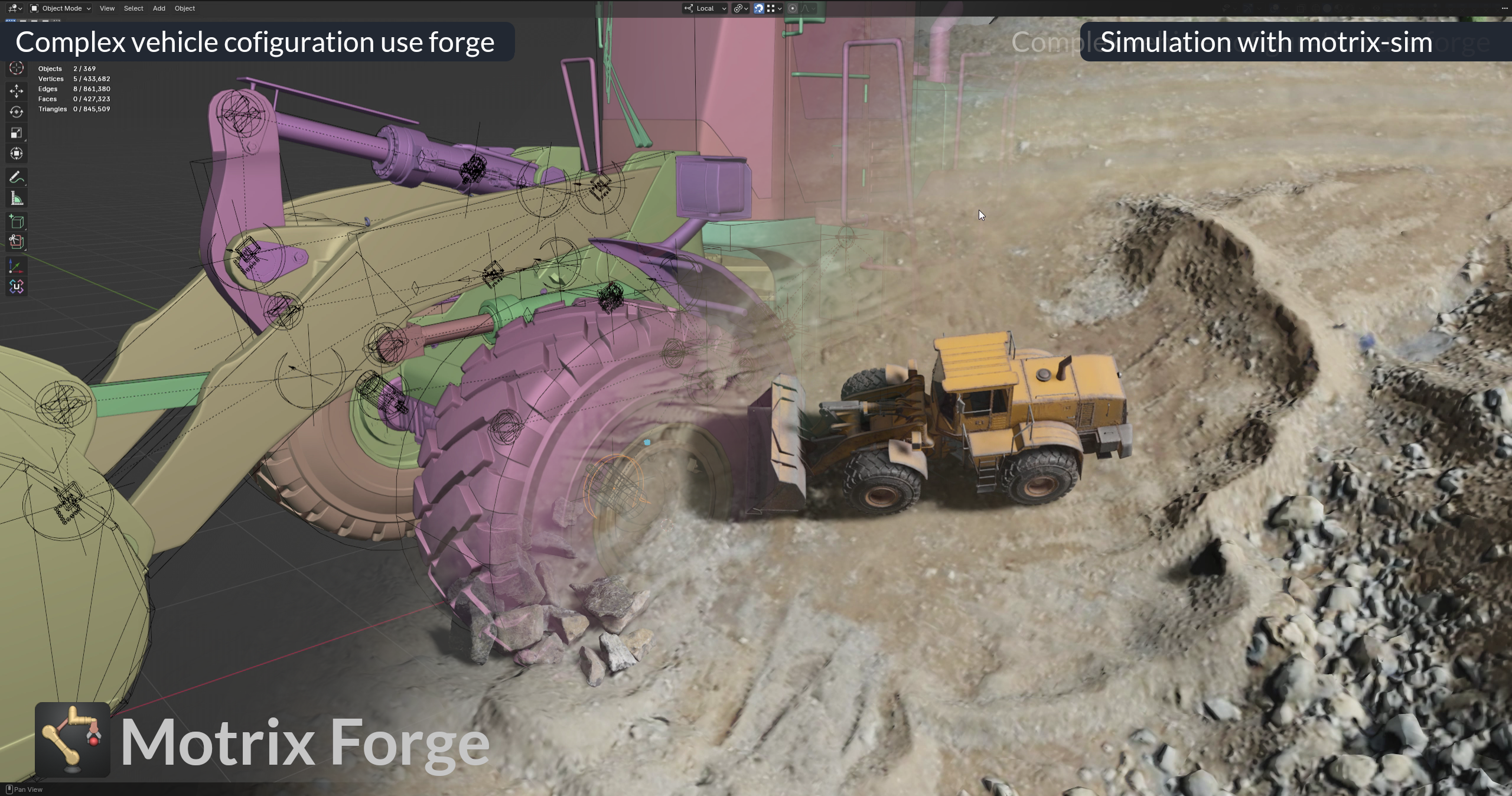
Forge is a visual scene-authoring tool for articulated multibody systems. It supports efficient creation, editing, validation, and configuration of MJCF XML scenes that describe kinematic structures, inertial properties, visual and collision geometry, actuators, and sensors. Model hierarchies, property panels, and Gizmos in Blender simplify the creation and configuration of robots, mechanisms, and their working environments. Scene import and export connect this authoring workflow to simulation.
At its core are the Forge add-on running in Blender and its companion MCP Server. The add-on handles modeling and scene operations. The optional MCP Server exposes these capabilities through MCP to AI agents such as Codex and Claude Code, enabling automated scene creation, modification, validation, import, and export.
Start here
| What you want to do | Read |
|---|---|
| Install and enable Forge in Blender | Installation Forge |
| Configure previews, MCP Bridge, dependencies, and startup | Config Forge |
| Find UI controls, model properties, and procedures | User manual |
| Change the add-on, MCP server, or documentation and run tests | Development Forge |
| Operate a Blender scene through an AI agent | MCP installation guide |
| Watch modeling, simulation handoff, and agent automation demonstrations | Case studies and videos |
What you can do
- Build model hierarchies: create Links, Joints, Visuals, Colliders, Sites, and Inertials, with parent relationships and root nodes.
- Edit model parameters: adjust geometry, materials, joints, and hardware through the sidebar, property panels, and viewport Gizmos.
- Configure simulation elements: add actuators, sensors, tendons, equalities, contacts, lights, and cameras.
- Check geometry and inertia: validate meshes, decompose convex hulls with CoACD, and compute mass, center of mass, and inertia from Visuals or Colliders.
- Edit existing scenes: import MJCF, modify it, and export XML with its assets while retaining a
.blendproject. - Automate workflows: use the optional MCP server to let an agent inspect scenes, call Forge Operators, and run import/export.
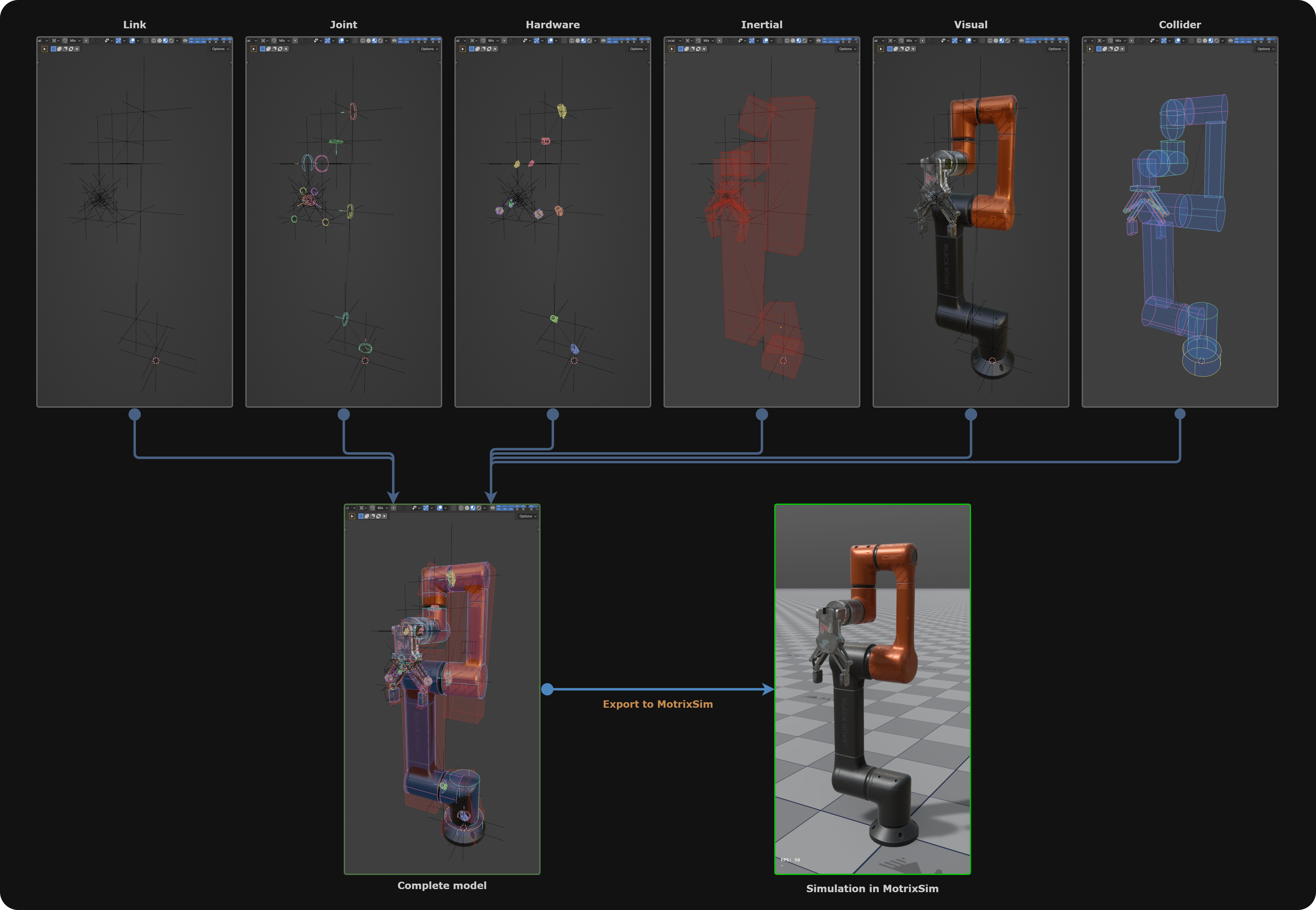
The robotic arm below illustrates how Links, Joints, Hardware, Inertials, Visuals, and Colliders form a complete model that can be exported to MotrixSim for simulation.
How it works
- Create or import geometry in Blender.
- Define Forge model types and build the Link hierarchy.
- Configure colliders, joints, actuators, sensors, and other elements.
- Validate geometry, compute inertia, and review model properties.
- Export MJCF XML and assets for the simulation environment.
For detailed procedures, begin with the UI overview. Forge provides modeling and scene configuration; simulation runs in the target environment after export.
Add-on and MCP server
| Component | Runs in | Purpose |
|---|---|---|
| Forge add-on | Blender process | UI, model data, Operators, import/export, and the MCP Bridge |
| Forge MCP Server (optional) | Agent-side Python process | Expose tools over stdio and call the Blender Bridge over TCP |
Install only the add-on to model through Blender's UI. Configure the MCP server when agent automation is needed. The Blender instance that owns the scene must have Forge enabled.
Using this documentation
The left sidebar provides About Forge, Installation Forge, Config Forge, Development Forge, case studies, and the full user manual. The right sidebar lists headings on the current page. Switch to the corresponding Chinese page using the language selector at the bottom left, or change between light and dark themes with the theme button.
See Local preview to edit or preview the documentation locally.