Chapter 4: Model Define — Kinematics and Instance
4.1 Kinematics group layout
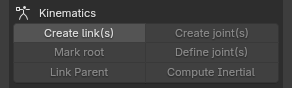
| Button | Operator ID | Available when |
|---|---|---|
| Create link(s) | forge.create_link |
Nothing is selected; all selected objects are Link/Frame/Replicate; or all are Visual/Collider |
| Create joint(s) | forge.create_joint |
All selected objects are Link |
| Mark root | forge.mark_root_link |
All selected objects are Link, Frame, or Replicate |
| Define joint(s) | forge.define_joint_type |
All selected objects are Joint |
| Link Parent | forge.define_parent |
The active object and other selected objects form a valid parent-child relationship |
| Compute Inertial | forge.create_inertial |
All selected objects are Link |
| Mark Instance Link | forge.mark_instance_link |
All selected objects are Link (see 4.7) |
| Set instance idname | forge.set_instance_idname |
Selected objects are Link, Frame, or Visual; only unmarked Links are changed |
4.2 Create Link
Create link(s)
- With no selection, create a top-level Link.
- With Link/Frame/Replicate selected, create a child Link for each object.
- With Visual/Collider selected, create a Link from each selected geometry object.
Shift + click: reverse the parent relationship — create a new parent Link at each selected Link/Frame/Replicate object's position and orientation, then make that object a child of the new Link, matchingShift + clickon Create frame(s).
After creation, the new Links become the current selection. There is no dialog.
4.3 Create and define Joint
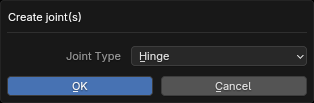
Create joint(s)
Create a Joint for every selected Link. Types are Free, Ball, Slide, and Hinge; the default is Hinge.
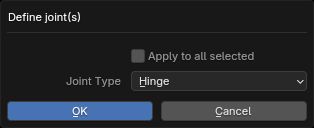
Define joint(s)
- The dialog starts with the active Joint type and modifies only the active object by default.
- Enable Apply to all selected to modify all selected Joints.
- Changing type also updates the displayed Joint shape.
4.4 Link Parent
Link Parent always uses the active object as the parent and has no dialog:
- When the active object is a Link, Frame, or Replicate, every other selected object must be an allowed child: Link, Frame, Replicate, Visual, Collider, Joint, Site, Light, Camera, or Attach.
- When the active object is a Visual the operator is unavailable: a Collider belongs under the Link, next to its Visual. A Collider inside a Visual is not exported.
- Existing children of a moved Visual (for example Colliders still bound to it) are reparented under the new active parent first, which repairs a legacy Collider-inside-Visual nesting.
- Every reparented object also moves into the collection named after its model type — a Visual into
Visual, a Collider intoCollider, and so on. Objects created at the world root live inWorld; parenting them is what moves them out.
Procedure:
- Select the child objects to move.
- Select the destination parent last, making it active.
- Click Link Parent.
4.5 Compute Inertial
Select one or more Links and click Compute Inertial. The dialog contains:
| Parameter | Default | Behavior |
|---|---|---|
| Inertial Model Type | Visual | Use either Visual or Collider geometry |
| Check Geometry | Off | Validate the collected geometry before calculation; skip the Link if validation fails |
- Collect direct children of the chosen type and recurse through Frame descendants. Child Link hierarchies are excluded; Visual and Collider geometry are not mixed.
- Box / Sphere / Cylinder / Capsule use solid-shape formulas from their parameters and do not require TetGen. World transforms account for scale (including nonuniform scale), reflections, and shear introduced by parents.
- Mesh uses evaluated geometry with modifiers applied, then TetGen tetrahedralization. Install TetGen and supply valid geometry suitable for volume calculation.
- Density comes from each object's
Forge_Geometry.density, unless the material in its first material slot has adensitycustom property, which takes precedence. - Mass, center of mass, and inertia are combined across the collected objects. Each successful calculation creates and selects a new Inertial under the Link. Existing Inertial objects are not replaced; remove old ones before recalculating.
- No new Inertial is created for a Link with no matching geometry, failed validation when enabled, or failed inertia calculation. See the report area for details.
Recommended workflow: confirm geometry types, dimensions, and density; select the Link; choose Visual / Collider in the dialog and enable Check Geometry when validation is needed. The separate Check Mesh(s) button still accepts only Visual objects.
Inertial preview
An Inertial is displayed as a box with equivalent mass and diagonal inertia, centered at the center of mass and aligned with the principal axes. Editing mass or inertia updates the display; Gizmo display size does not resize it. Physical position and rotation are stored relative to the parent Link; display scaling does not enter the exported MJCF inertial pose.
See Chapter 7 for inertia editing and Chapter 0 for preview toggles.
4.6 Mark root
Writes the Root Link marker to selected Link/Frame/Replicate objects that have no parent. Objects with a parent are disconnected, marked, and accompanied by a warning. There is no dialog.
4.7 Instance rules
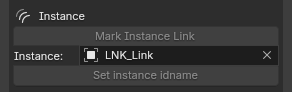
Instance reuses one Link subtree (for example, a gripper or wheel) at multiple locations. A marked Instance Link supplies template content; on export, its children are written under every Link that references it.
The separate Instance group below Kinematics contains three rows: Mark Instance Link, the Instance field, and Set instance idname.
Concepts
| Name | Marker | Description |
|---|---|---|
| Instance Link (source) | INSTANCE_LINK custom property |
Written by Mark Instance Link and removed by clicking again. It is not exported as a <body>; if unreferenced, it is not exported at all, including assets. |
| Placeholder Link | INSTANCE_IDNAME custom property |
Written by the Instance field and Set instance idname. The Link itself (name, pose, and properties) is retained; its children are replaced by a copy of the Instance Link subtree. |
| Instance field | Forge_Props.instance_body |
The list contains only marked Instance Links. |
Procedure
- Build a template Link in the scene with its Joints, Visuals, child Links, and so on. Keep it visible at the world root.
- Select the template Link and click Mark Instance Link. This adds
INSTANCE_LINK; clicking again removes it. - Choose the template in the Instance field.
- Select one or more placeholder Link objects that are not marked as
INSTANCE_LINK(normally empty Links created under the destination parent). Click Set instance idname to writeINSTANCE_IDNAME. If the Instance field is empty, the references on selected Links are cleared. - Export normally; see Chapter 8.
Export rules
- The Instance Link itself is not exported as a
<body>. When referenced by a placeholder Link, its subtree meshes and material assets are exported with the copies. - An Instance Link referenced by no placeholder Link is not exported at all: no
<body>and no assets from its subtree are written; a warning is shown. - Each placeholder Link exports its own
<body>(name, position, quaternion, and properties), while its children are replaced by a complete copy of the template subtree: - every copied element name receives the prefix
<placeholder Link name>_(for example,grip_l_finger); copies do not collide with one another, and an_instsuffix is added if a name still conflicts; CameraandLighttarget references inside a copy are renamed as well;- meshes and material assets from the template subtree are exported once and shared by all copies.
- Children of the placeholder Link itself are not exported and are not included in asset collection.
- Global sections (
actuator,sensor,tendon,equality,contact) are not duplicated per instance and should not refer to element names inside an Instance Link.
Notes
INSTANCE_IDNAMEstores a reference to the Instance Link object rather than its name, so renaming the template keeps the reference valid. Markers stored as names in older files are still recognized on export.- If the object referenced by
INSTANCE_IDNAMEis deleted or is no longer a Link, the placeholder Link falls back to normal export and shows a warning. - A Link already marked as an Instance Link cannot also receive
INSTANCE_IDNAME; it is skipped with a warning.INSTANCE_IDNAMEmarkers inside a template subtree are ignored when copying because the copy is content only. - An Instance Link nested inside a template subtree is not copied as a
<body>; its content is exported only through a placeholder Link that references it. If it has no reference, it is not exported. - The Instance marker is a Blender-side authoring concept and is not restored when an MJCF file is imported again.
MCP calls
forge_mark_instance_link(select=["gripper"])                  # mark / unmark the template
forge_set_scene_property(group="forge_props", values={"instance_body": "gripper"})
forge_set_instance_idname(select=["arm_l", "arm_r"])          # write references on placeholder Links