Chapter 7: Properties editing
7.1 Three property entry points
Model Define → Global
This entry edits scene-level Global Properties and Visual Properties; see Chapter 2. All objects must be deselected first.
3D View property gizmo
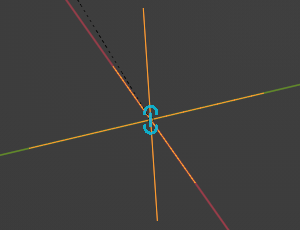
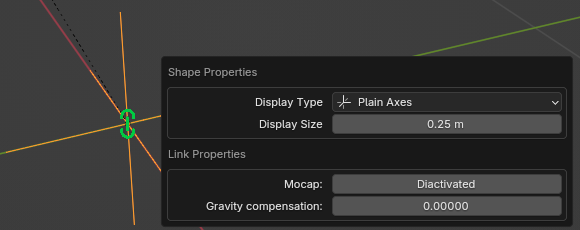
In Object Mode, select a Forge object and click the colored Gizmo shown next to the object to open its Properties dialog.
Object Properties → Forge Properties
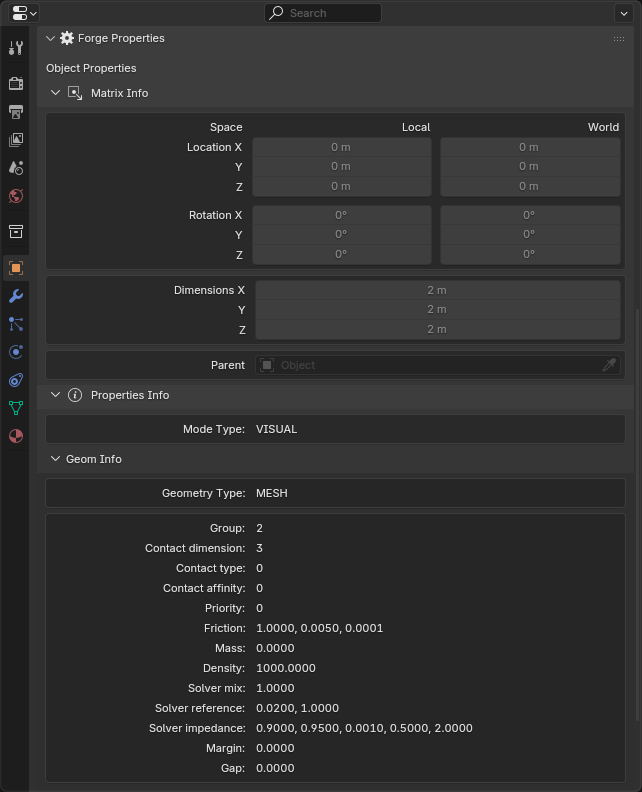
This panel displays the active object's:
- Local/World Location and Rotation;
- Dimensions;
- Parent;
- Forge Model Type; and
- model-property data for the current type.
To open the panel:
- Open the
Propertieseditor .
- Switch to the
Object Propertiestab .
- Expand
Forge Propertiesto show properties for the current Model Type.
7.2 The property gizmo is not visible
Check the following in order:
- The current area is a 3D View and Blender is in Object Mode
 .
- Gizmos are enabled in the 3D View
 .
- The active object's Blender type and Forge type are correct.
- A shape object still has the Geometry Nodes Modifier that Forge added during creation.
7.3 Object property dialogs
All dialogs below are UI-only Operators intended for interaction through the Blender interface.
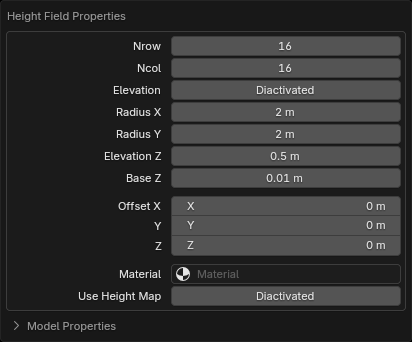
Height Field
Operator ID: forge.properties_hfield
| Main editable values |
|---|
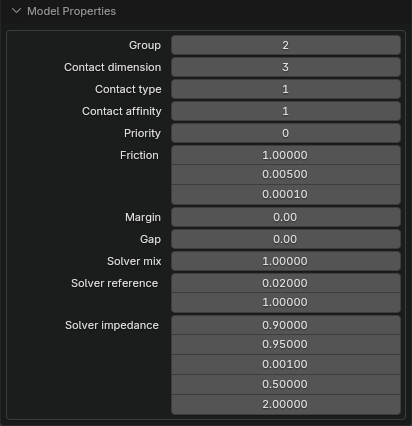
| Nrow/Ncol, Elevation, X/Y Radius, Elevation Z, Base Z, Offset, Use Height Map, Height Map, contact/solver properties |
Dialog:
Plane
Operator ID: forge.properties_plane
| Main editable values |
|---|
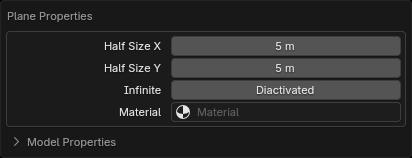
| X/Y Half Size, Infinite, contact/solver properties |
Visual / Collider
Operator ID: forge.properties_shape
| Main editable values |
|---|
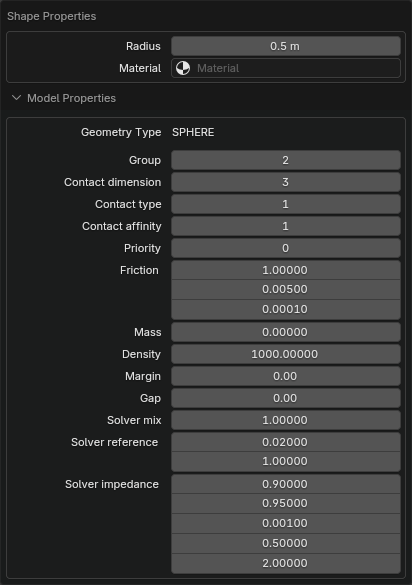
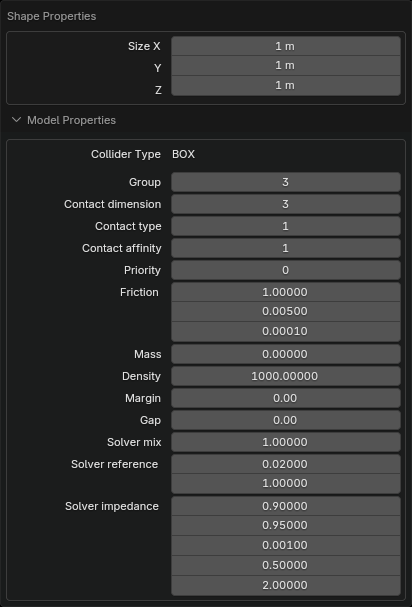
| Basic shape dimensions; Group, Condim, Contype, Conaffinity, Priority, Friction, Mass, Density, Margin, Gap, Solver |
- Box: edit X/Y/Z Size.
- Sphere: edit Radius.
- Capsule/Cylinder: edit Radius and Height.
- Mesh: there is no Primitive Size input; edit the Mesh itself or the object dimensions.
Materials are not edited in this dialog. Use Create Material, or assign a material directly in the Blender object material slots.
The Model Properties area stores collision, mass, and Solver parameters for the MJCF Geometry.
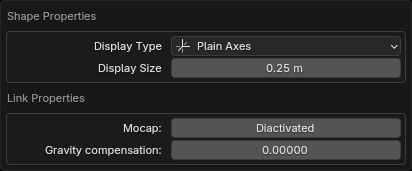
Link
Operator ID: forge.properties_link
| Main editable values |
|---|
| Empty Display Type, Display Size, Mocap, Gravcomp |
Site
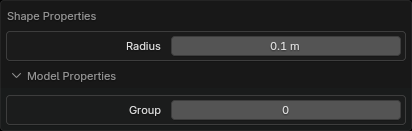
Operator ID: forge.properties_shape_site
| Main editable values |
|---|
| Box/Sphere/Capsule/Cylinder dimensions and Group |
Inertial
Select an Inertial to view mass, diaginertia, and fullinertia under Object Properties → Forge Properties → Inertial Info. This panel is read-only and there is no separate inertia properties dialog. To change values, use the object's Forge_Inertial through Python:
import bpy

inertial = bpy.context.active_object.Forge_Inertial
inertial.mass = 2.0
inertial.fullinertia = (0.2, 0.3, 0.4, 0.0, 0.0, 0.0)
diaginertiacontains the three diagonal components in the principal inertia frame. The object's rotation relative to its parent Link defines the principal axes; its position is the center of mass.fullinertiais the symmetric tensor about the center of mass, expressed in Link axes, orderedIxx, Iyy, Izz, Ixy, Ixz, Iyz. It is derived from the current rotation and diagonal inertia.- A nonzero
fullinertiaassignment must be positive definite. Forge decomposes it and updates the principal rotation anddiaginertia. Scripts should assign all six components together to avoid incomplete intermediate tensors. - Changing mass or inertia updates the equivalent box. Preview requires finite positive mass, finite positive diagonal moments, and the inertia triangle inequalities; otherwise it is not drawn.
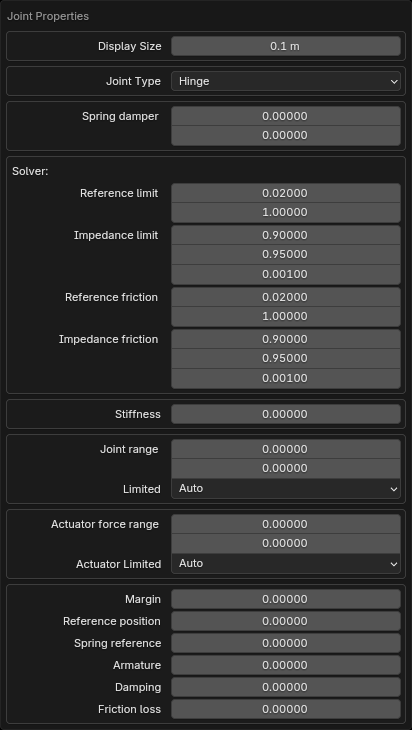
Joint
Operator ID: forge.properties_joint
| Main editable values |
|---|
| Type, Display Size, Springdamper, Solver, Range, Force Range, Stiffness, Ref, Armature, Damping, Frictionloss |
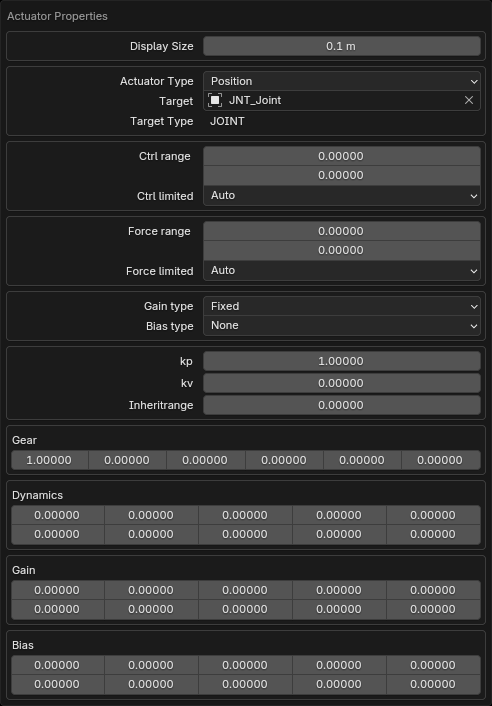
Actuator
Operator ID: forge.properties_actuator
| Main editable values |
|---|
| Type, Target, control/force ranges, Gain/Bias types, type-specific parameters, Gear/Dynamics/Gain/Bias arrays |
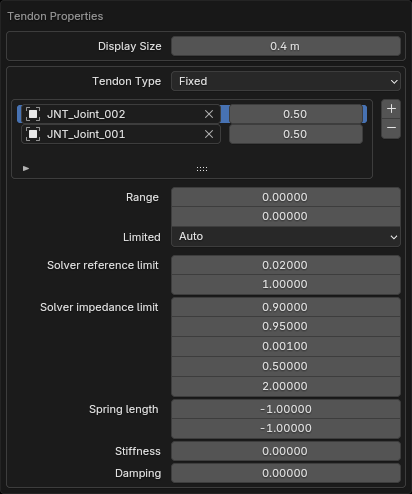
Tendon
Operator ID: forge.properties_tendon
Tendon uses + and - to add or remove Target list entries. The Operators are forge.add_tendon_target_item and forge.remove_tendon_target_item. They are UI helper entry points; scripts and MCP should maintain the Tendon Target collection directly.
| Main editable values |
|---|
| Type, add/remove Target entries, Range, Solver, Spring Length, Stiffness, Damping |
Equality
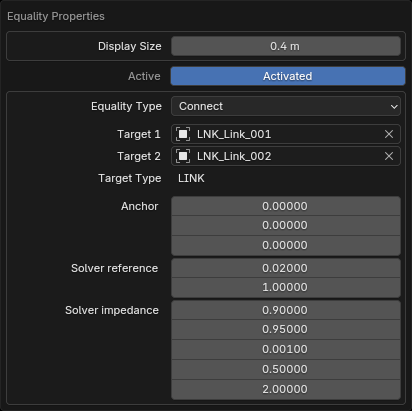
Operator ID: forge.properties_equality
When Active is disabled, the main Equality parameters cannot be edited.
| Main editable values |
|---|
| Active, Type, Target 1/2, type-specific parameters |
Contact
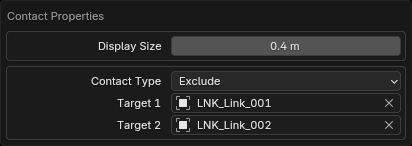
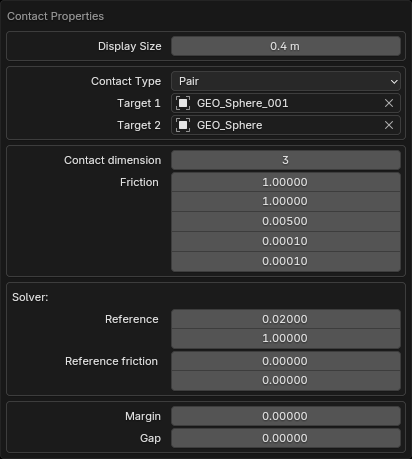
Operator ID: forge.properties_contact
Only Pair contacts display collision and Solver parameters.
| Main editable values |
|---|
| Type, Target 1/2; for Pair: Condim, Friction, Solver, Margin, Gap |
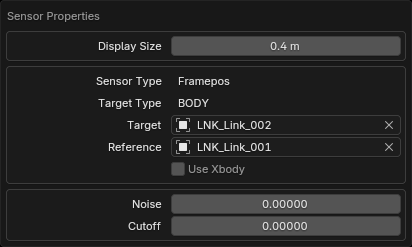
Sensor
Operator ID: forge.properties_sensor
Frame Sensor can set Reference. Contact Sensor shows a Link, Geom, Subtree, or Site name according to Target Type.
| Main editable values |
|---|
| Sensor/Target Type, Target, Reference, Xbody/Subtree, Noise, Cutoff; Contact Sensor Data/Reduce |
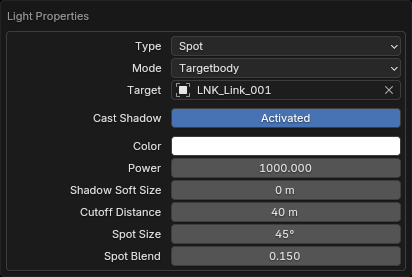
Light
Operator ID: forge.properties_light
Target is shown only for Targetbody/Targetbodycom modes.
| Main editable values |
|---|
| Type, Mode, Target, Shadow, Color, Energy, Size/Distance/Angle/Spot parameters |
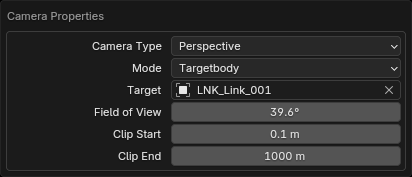
Camera
Operator ID: forge.properties_camera
Target is shown only for Targetbody/Targetbodycom modes.
| Main editable values |
|---|
| Type, Mode, Target, FOV or Ortho Scale, Clip Start/End |
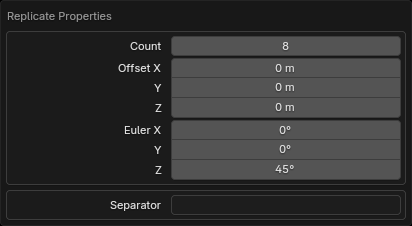
Replicate
Operator ID: forge.properties_replicate
| Main editable values |
|---|
| Count, Offset, Euler, Separator |
Dynamic fields:
- Global / Visual: detailed Headlight and SSGI parameters are controlled by their Active switches; disabling them disables the corresponding fields.
- Height Field: Height Map appears only after Use Height Map is enabled.
- Plane: Infinite is independent and does not hide Half Size.
- Visual / Collider: the geometry type determines dimension fields; Box shows three-axis Size, Sphere shows Radius, Capsule/Cylinder show Radius + Height, and Mesh shows no primitive size. Materials are managed through the object's first Material Slot.
- Site: the geometry type determines whether Size, Radius, or Radius + Height is shown.
- Link: Display Type / Display Size / Mocap / Gravcomp are always shown; no fields are hidden by type.
- Joint: Free shows only basic Stiffness / Armature / Damping / Frictionloss. Other types also show Springdamper, Solver, Range, Limited, and related fields. Ball does not show Actuator Force Range/Limited.
- Actuator: Position shows Kp / Kv / Inheritrange, Velocity shows Kv, and Adhesion shows Gain; other types show Gear / Dynamics / Gain / Bias arrays.
- Tendon: the Target field comes from a variable-length Target list controlled by
+ / -. - Equality: disabling Active disables all remaining fields. Target 2 appears only after Target 1 is set; the remaining parameters depend on Equality type.
- Contact: only Pair shows Condim, Friction, Solver, Margin, Gap; Exclude does not show them.
- Sensor: a Contact Sensor labels target fields as Link1/2, Geom1/2, Subtree1/2, or Site according to Target Type. Frame sensors show Reference and Use Xbody after Target is set; Contact sensors show Reference and Use Subtree when a second target is required.
- Light: only Targetbody/Targetbodycom shows Target; Spot/Point show Shadow Soft Size / Cutoff Distance, other types show Angle, and Spot additionally shows Spot Size / Spot Blend.
- Camera: only Targetbody/Targetbodycom shows Target; Perspective shows FOV/Angle, while Orthographic shows Ortho Scale.
- Replicate: Count / Offset / Euler appear only while the object still has a Replicate Modifier; Separator always belongs to Replicate properties.
7.4 How changes take effect
Property dialogs modify Object, Modifier, or Scene data directly and do not have an Apply/Save button. Changes remain after closing the dialog and can be undone with Blender Undo.
Prefer changing Size, Radius, and Height in Properties. Several Forge objects lock Object Scale; shape dimensions are driven by the Geometry Nodes Modifier parameters.