Chapter 8: Import and Export
8.1 Import
GLB import and export require Blender's glTF 2.0 add-on (io_scene_gltf2). If disabled, Forge prompts you to enable it in Edit > Preferences > Add-ons, before clearing the import scene or writing export files and modifying meshes. OBJ/STL import, OBJ export and XML-only updates do not require this add-on.
The Import panel rebuilds a Blender scene from an MJCF XML file.
Mesh assets can reference OBJ, STL, or GLB files. A GLB asset must contain exactly one Mesh object; other elements such as cameras, lights and empty nodes are discarded. The Mesh node's transform is baked, preserving file-space coordinates and UVs for Forge export/import roundtrips. MJCF mesh scale is applied afterwards; materials come from the MJCF definitions, rather than embedded GLB materials. Missing files, unsupported formats, and GLB files with zero or multiple Mesh objects report an asset-loading error.
Operator ID: forge.import_mjcf
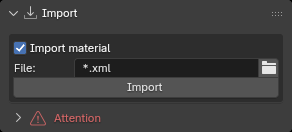
Procedure:
- Select an MJCF XML file in File.
- Enable Import material if needed.
- Click Import.
Import is a modal operation and displays overall progress plus sub-progress for the current stage. Save your current work before importing: Import cleans the current scene objects and collections, non-main scenes, and orphaned data before rebuilding the model.
If Forge Library does not exist or its path is invalid, Forge attempts to configure it again from the add-on's lib/assets directory. The operation is cancelled if recovery fails.
8.2 Export
The Export panel writes the current Forge scene as an MJCF XML file.
Operator ID: forge.export_mjcf
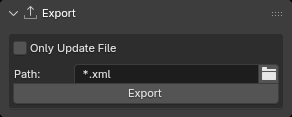
Parameters:
- Only Update File: update only the MJCF contents and skip rewriting external asset files;
- Path: export destination. If
.xmlis omitted, the file selector adds it automatically.
When calling forge_export_mjcf through MCP, an existing target file is refused by default. Pass overwrite=True explicitly to confirm replacement. The UI operator forge.export_mjcf writes to the path selected by the current file browser.
Export proceeds through these stages: collect assets; write images, Height Field, and Visual/Collider meshes; write each MJCF section; and write the file. Overall and sub-progress are displayed.
Empty exported mesh assets are ignored.
Export collects model objects from the World, Link, Frame, Visual, and Collider collections, plus Replicate and its child collections: parentless objects in those collections are treated as roots, and their children are collected by walking the hierarchy. A root Link is therefore exported even when it lives in the Link or Frame collection.
When World uses an Environment Texture node connected to an environment image, Export writes it as an MJCF <texture type="envhdr">. Import restores the texture to the main scene's World.
Checker materials export as native MJCF 2D builtin checker textures, without external image files. Import restores their colors, repeat values, and Blender shader nodes when Import material is enabled. See Create a checker material for creation parameters and the supported node layout.
Instance reuse markers and export rules are described in Section 4.7: an Instance Link only supplies assets; its children are written under each placeholder Link during export.
The export path may be absolute or relative to the current .blend file. Make sure the destination directory exists and is writable before exporting.
8.3 Scripts and MCP
Import, Export, Attach, and Include are all modal Operators. They initially return RUNNING_MODAL; scripts and MCP clients must wait for the corresponding state to finish:
- Import:
Forge_Props.is_importing; - Export:
Forge_Props.is_exporting; - Attach:
Forge_Props.is_attaching; - Include:
Forge_Props.is_including.
Through MCP, prefer forge_import_mjcf, forge_export_mjcf, forge_create_attach, and forge_create_include. These tools set paths, wait for the modal operation to finish, and return the result.
8.4 Inertial import and export
When importing <inertial fullinertia="...">, Forge decomposes the tensor expressed in Link axes into a principal frame and diagonal inertia. When nonzero diagonal inertia is available, export writes pos, mass, quat, and diaginertia, without also writing fullinertia. An imported fullinertia can therefore export as an equivalent quat + diaginertia representation.
Inertial poses use physical transforms relative to the Link; viewport box scaling does not affect export. Imported Mesh Colliders use wireframe display and can show translucent surfaces through Collider Preview.