Config Forge
Open Edit → Preferences → Add-ons → Forge. Search for Forge in Add-ons and expand its settings to access the General, MCP Server, and Dependencies tabs.
These preferences control add-on display, connections, and dependencies. Model parameters such as mass, joints, and geometry dimensions belong to scene objects and their Forge Properties; see Property editing.
General
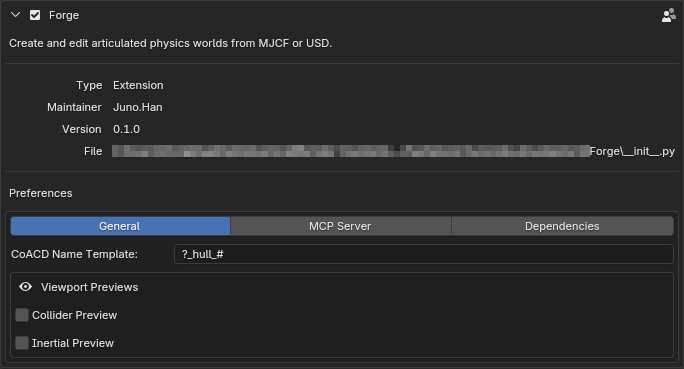
CoACD Name Template
Controls generated convex hull names. The default is ?_hull_#:
| Placeholder | Meaning | Example |
|---|---|---|
? |
Original mesh object name | arm |
# |
Hull number, starting at 1 with at least three digits | 001, 002 |
For a source named arm, the default template produces arm_hull_001, arm_hull_002, and so on. Changing the template affects subsequent decompositions and does not rename existing hulls. Select Hulls also matches the current template, so it might no longer find objects named with the previous one. Keep ? in the template.
See CoACD for decomposition and output behavior.
Viewport Previews
| Setting | Default | Purpose |
|---|---|---|
| Collider Preview | On | Draw translucent Collider surfaces in all 3D viewports |
| Inertial Preview | On | Draw boxes with equivalent mass and inertia in all 3D viewports |
Changing either toggle redraws the viewports immediately. Both previews require Overlays and Extras in the current view. Disabling Collider Preview retains the native wireframe. Disabling Inertial Preview retains its selectable Empty box.
These switches affect display only, without changing collision geometry, mass, inertia, or export data. Inertial box dimensions come from mass and inertia and are independent of Gizmo display size.
MCP Server: the Blender-side Bridge
This tab configures the TCP Bridge inside Blender. It is a separate process from the agent-side stdio MCP Server. See Chapter 1 and the MCP installation guide for startup and client setup.
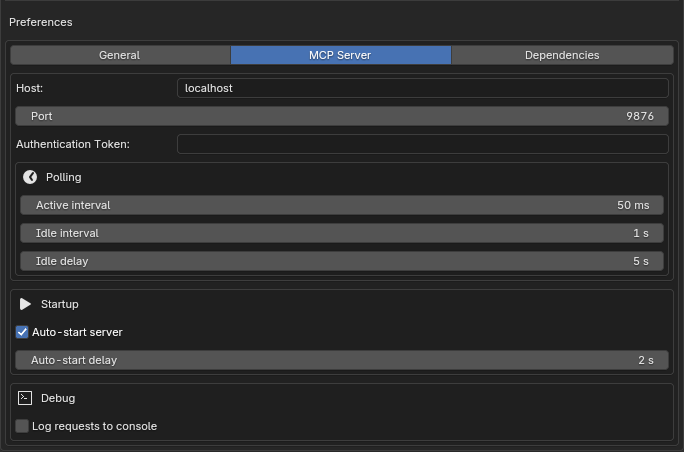
Connection settings
| Setting | Default | Range and meaning |
|---|---|---|
| Host | localhost |
Address the Blender Bridge listens on, rather than the agent machine's address |
| Port | 9876 |
Integer, 1024–65535; match the agent's connection port |
| Authentication Token | Empty | Shared token shown as a password field; clients must supply the same value when configured, and non-loopback listeners require one |
The agent-side FORGE_MCP_HOST, FORGE_MCP_PORT, and FORGE_MCP_TOKEN must correspond to the Bridge configuration. Across machines, the client connects to a reachable address of the Blender machine.
After editing Host, Port, or Token, click Stop MCP Bridge, then Start MCP Bridge in the Forge sidebar to apply them to the running service. An occupied port causes startup to fail with an error.
Polling
Times below are in seconds and control the Blender main-thread timer in interactive mode. They are not network request timeouts.
| Setting | Default | Allowed range | Purpose |
|---|---|---|---|
| Active interval | 0.05 |
0.01–1.0 |
Polling interval during work; smaller values improve responsiveness but increase CPU overhead |
| Idle interval | 1.0 |
0.1–10.0 |
Polling interval while idle; larger values reduce idle overhead but can delay the next request |
| Idle delay | 5.0 |
1.0–60.0 |
Inactivity time before switching to the idle interval |
Defaults are normally sufficient. Stop and restart the Bridge after changing these settings to apply them to that service.
Startup
| Setting | Default | Range and meaning |
|---|---|---|
| Auto-start server | On | Automatically start the Blender-side Bridge when the add-on starts; when disabled, start it manually from the sidebar |
| Auto-start delay | 2.0 seconds |
0.0–30.0 seconds; wait before the automatic startup attempt |
Disabling Auto-start server does not immediately stop a running Bridge; use Stop MCP Bridge for that. Auto-start delay controls startup timing, rather than agent request latency.
The Bridge requires Blender's online-access permission. Without it, the port does not listen. Allow online access in the network preferences for your Blender version; background launches use --online-mode. Startup failures are displayed in this tab's Debug section.
Debug
| Item | Default | Purpose |
|---|---|---|
| Log requests to console | Off | Write request and response logs to Blender's console for connection and tool-call troubleshooting |
| Startup error message | None | Show failures such as an occupied port or disabled online access; this is status information rather than an editable setting |
The logging switch takes effect immediately, without restarting the Bridge. Incoming requests are logged before execution and responses afterward; deferred operations initially show Forge response: deferred. Logs go to Blender's system console (standard error), rather than the Python Console editor. On Windows, open Window → Toggle System Console; when launching Blender from a terminal, read the logs there. No request logs appear while the Bridge is idle. PIP output from failed dependency installations also appears in the system console.
Dependencies
This tab checks and manages the Python environment used by Blender, independently of the root .venv shared by the repository and documentation tools.
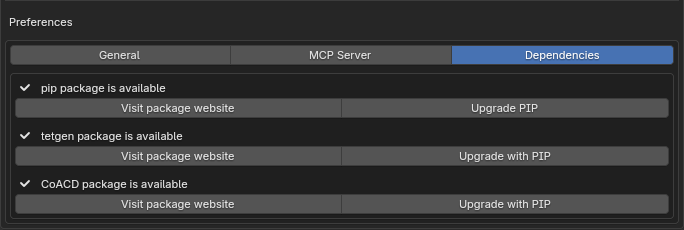
| Dependency | Purpose |
|---|---|
| pip | Install and upgrade external Python packages |
| tetgen | Mesh tetrahedralization and inertia; parameter-based Box, Sphere, Cylinder, and Capsule inertia does not need it |
| CoACD | Decompose complex meshes into convex hulls |
Each dependency displays package is available or package is not available with a status icon and a Visit package website link.
PIP controls
- PIP available: Upgrade PIP upgrades
pip setuptools wheel. - PIP missing, ensurepip available: Install PIP is shown.
- Neither PIP nor ensurepip available: Installation instructions opens the installation guide.
Install or upgrade feature dependencies
Open Edit → Preferences → Add-ons → Forge → Dependencies. Install TetGen or CoACD as needed for your workflow; parameter-based primitive inertia does not require TetGen.
Dependency installation permissions: Installing or upgrading packages in Blender's Python environment may require administrator privileges. On Windows, if access is denied or the installation directory is not writable, close Blender, right-click its shortcut, choose Run as administrator, and retry the dependency installation or upgrade. Close that instance afterward and restart Blender normally.
- If PIP is missing, install it first and restart Blender as prompted.
- For missing tetgen or CoACD, click Install with PIP. Available packages show Upgrade with PIP instead.
- Restart Blender after installation or upgrade, then check the dependency status again.
- If installation fails, read the console output and check network access and write permissions for Blender's Python directory.
Both installation and upgrade controls invoke PIP in upgrade mode. Running uv sync at the repository root does not replace dependency installation inside Blender.
Saving and applying changes
| Change | Takes effect |
|---|---|
| Collider / Inertial Preview | Viewports redraw immediately |
| CoACD Name Template | On the next decomposition or hull selection |
| Host / Port / Token, Polling | After stopping and restarting the MCP Bridge |
| Logging | Immediately, without restarting the MCP Bridge |
| Auto-start options and delay | In a subsequent add-on startup sequence |
| Python dependency installation or upgrade | Restart Blender afterward |
Blender manages preference persistence. If automatic preference saving is disabled, use Save Preferences in Preferences to retain settings for the next launch.